Listen to your client. Let AI take the notes.
Even if the meeting is in desktop Zoom. Even if the client needs the minutes today.
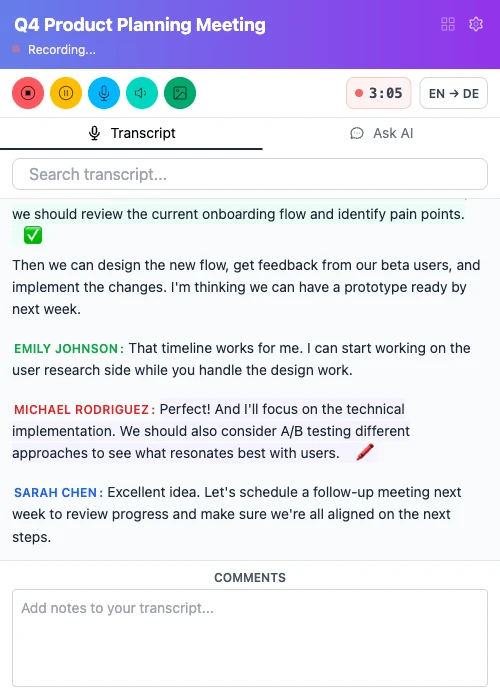
Listening and taking notes at the same time does not work.
While you phrase the last thought, the next one goes past. And a bot in the participant list has to be explained to the client.
Sound familiar?
Who Call Copilot is for
This is for you if…
- You look after clients yourself: you consult, coach or sell
- After a call the client expects an email, minutes or a plan
- You talk to clients in more than just English
- You pay for your own tools and do not want another subscription
This is not for you if…
- You need a team workspace with shared recordings
- Everyone in the meeting has to see that it is being recorded
- You need to transcribe without an internet connection
Why give it a try?
No bot joins the call
Audio is captured in your browser. Nobody sees an extra participant.
Meet in the browser, Zoom on the desktop
Record a tab or all of your computer's audio, with your microphone alongside. A finished file or a link to a video can be transcribed without a call.
Ask about the call without interrupting
"What did we agree on the deadline?" — answered from the transcript, mid-call. Markers, screenshots and notes land in the text by time.
From one call: a summary, action items, an email
23 ready-made presets, and a chat about the text for everything else. The whole call downloads as one archive, subtitles as .srt or .vtt.
Not only in English
Transcription in 30+ languages, German and Russian among them, with speakers kept apart. Any passage can be translated on demand.
Transcripts stay with you
In your browser, with no cloud sync. Audio is transcribed on Deepgram's EU servers and not retained.
Four steps
The other side installs nothing.
Install the extension
From the Chrome Web Store. The demo call is free and needs no account.
Choose what to record
A browser tab or all of your computer's audio. Your microphone runs alongside.
Have the conversation
The transcript runs in the side panel, and recording goes on if you close it. Mark what matters, ask about the text.
Take the document
A summary from a preset, action items, an email to the client. The call stays in a searchable archive in your browser.
What it looks like
Real screens from the extension, not mock-ups.
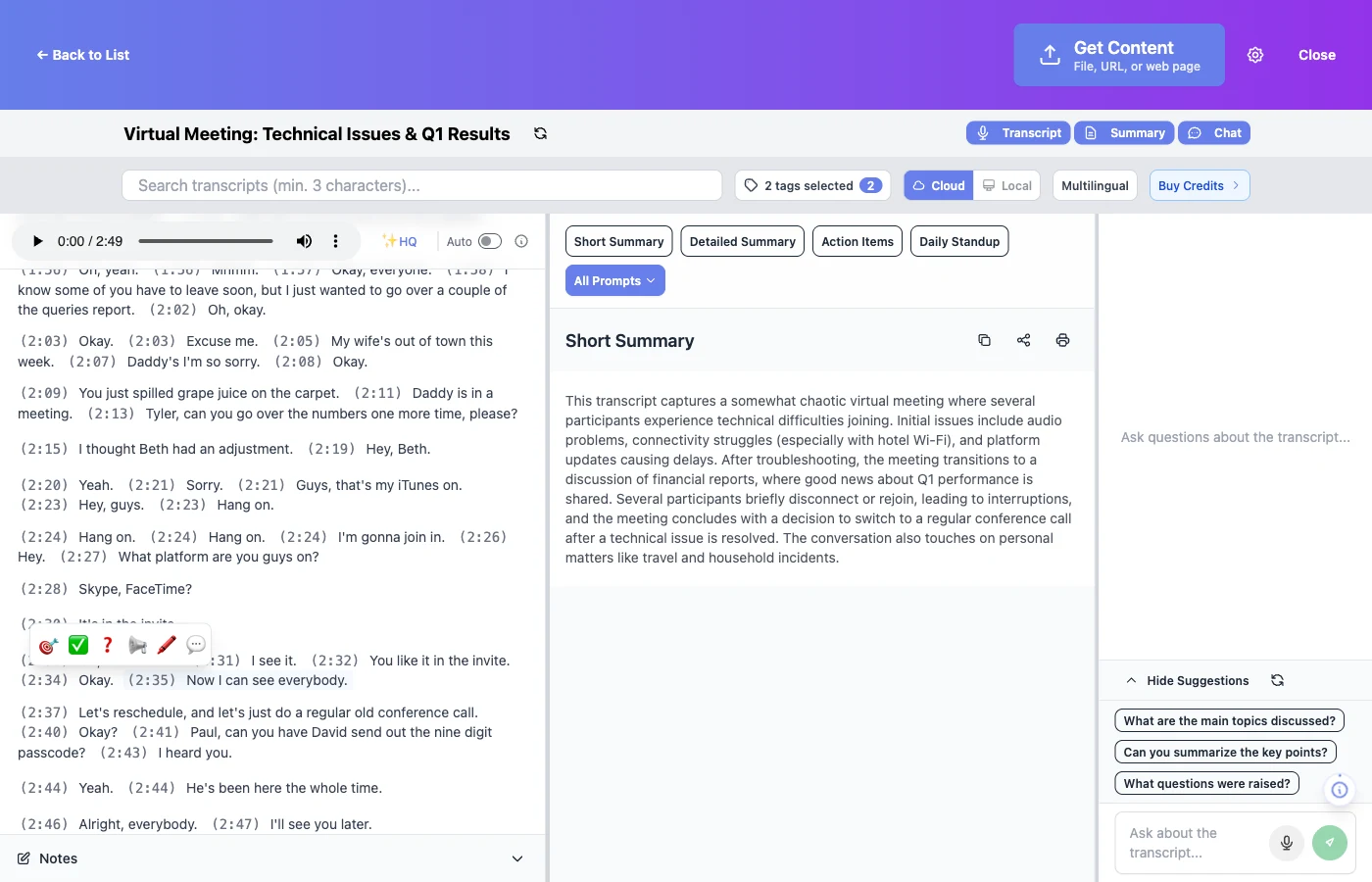
After the call: transcript with markers on the left, a summary from a preset on the right, questions alongside.
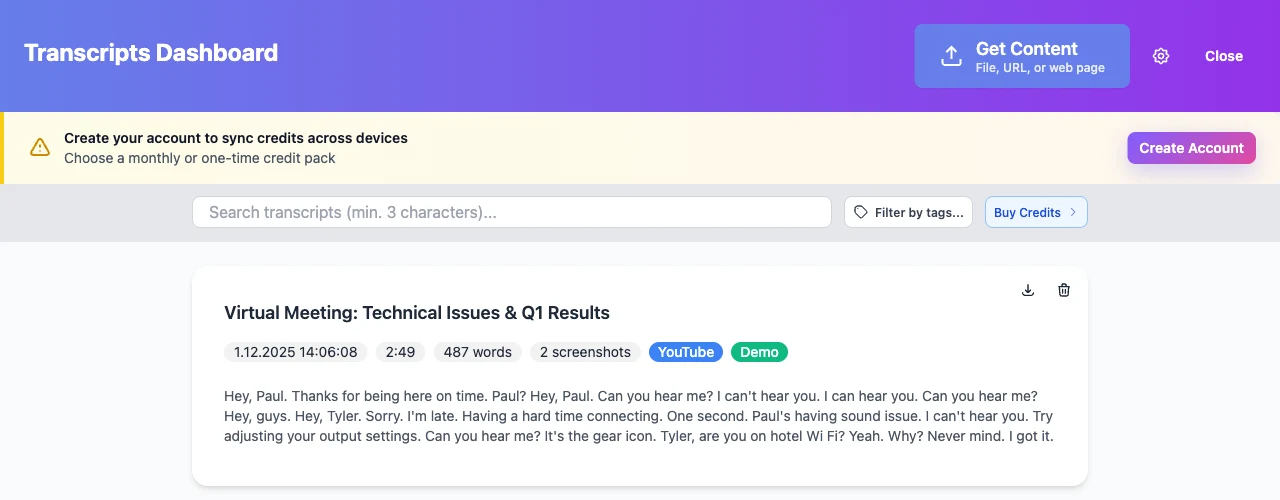
An archive with search and tags — in your browser, not on a server.
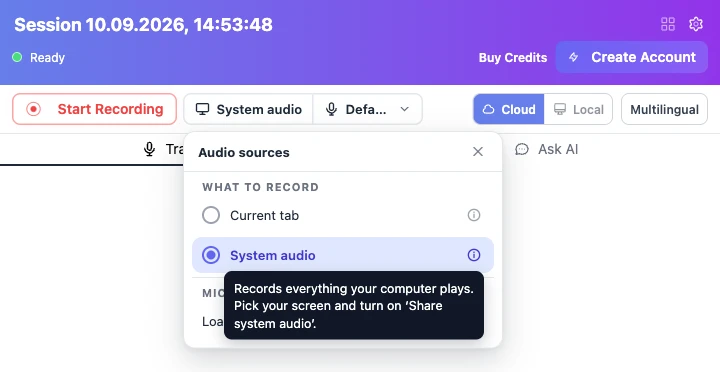
A tab or system audio — one click before you record.
What people say on the Chrome Web Store
“No bot and one click background recording is very handy. Screenshotting during a call is another super feature for me. Can't imagine my next demo call without it.”
“The real-time translation is a lifesaver when someone has a thick accent or is talking way too fast, and I love that there is no annoying bot joining the meeting so it stays professional.”
“Translation on the fly is super useful for my international calls. The local model idea is awesome, feels much safer. And it's fast! Also really like being able to search past conversations.”
Next: the document writes itself while you talk
Before the call you set out a plan for it — or skip that step. During the call one button updates the document: what has been answered, what is still open, what to ask next. By the end it is ready: export and send.
- A plan for the call — your own or worked out with the AI, skippable
- You see what has been covered and what has not
- PDF export and a tab for a second screen
Be the first to know
One email when version 2.0 is available.
No newsletters; unsubscribe any time. If the extension is already installed, the update arrives on its own.
Privacy
- Transcripts, audio and screenshots are stored only in your browser. There is no cloud sync; you move the database to another computer as a file.
- Audio is transcribed on Deepgram's EU servers and not retained. Model improvement on your audio is switched off on every request. On networks that block Deepgram you can, if you choose, route the audio through the Call Copilot server in Germany on its way there — off by default, and the server stores nothing (guide).
- AI is your choice. Cloud AI runs only with providers that neither keep your data nor train on it. Gemini Nano, built into Chrome, runs right on your computer if your Chrome supports it.
- Delete a call and its audio and transcript go with it.
Pricing
- The demo is free and needs no account. Signing up gives you 20 minutes of transcription.
- After that, credits. One minute of transcription is one credit. Cloud AI spends credits at its own cost; local AI spends none.
- Monthly plan — €1.99 to €12.99 for 100–1,500 credits a month. Unused credits roll over while the plan is active and are lost on cancellation.
- One-time pack — €24 to €149 for 3,000–30,000 credits, no subscription and no expiry.
You buy credits inside the extension.
Frequently asked questions
Will the client see that I am recording?
Not in the meeting interface: no bot joins, no notification appears. Telling the other side is your responsibility — recording laws differ from country to country.
Can I record a call in the Zoom or Teams desktop app?
Yes, from version 1.10.0 — through system audio. You need Chrome 141+ and macOS 14.2+, Windows or ChromeOS; not available on Linux. Guide.
What do I need for it to work?
Chrome, Edge or another Chromium browser, an internet connection and microphone permission: without it, recording does not start. For tab recording, the meeting has to be open in the browser.
How do I move my recordings to another computer?
Export the database as one file and restore it on the new device: Settings → the "Backup" tab. The whole database moves at once, audio included. Guide. For a single call: its download menu → "Whole call (.zip)", then "Import call" on the other dashboard.
The recording hangs on "Connecting to Deepgram". What now?
Your network, a VPN or an antivirus is blocking the transcription service. From version 1.10.4 the extension says so after five seconds and offers a detour through the Call Copilot server in Germany — one button, no minutes spent. Guide.
Try it on your next client call
The demo is free and needs no account; signing up gives you 20 minutes of transcription. After that — credits, no subscription required.
Install from the Chrome Web Store